STEP 1: Installing the External Render Engine

Install the external render engine.

Note

  • Use the Chorus Hub server setup file with the same build number to install the external render engine.

  • Before installing the external render engine, perform the following steps on the external rendering terminal.

    • Create an account with the same account (same user name and password) as the OS account used to install Chorus Hub server.

    • Sign in using the created account.

1) Run ChorusHubServer_Setup-11.xx.xxxx.exe on the terminal that will be used as the external render engine.

  • Follow the instructions provided by the setup wizard.

2) Click [Options].
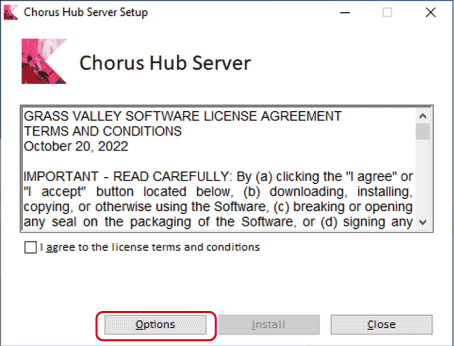
  • The component selection screen appears.

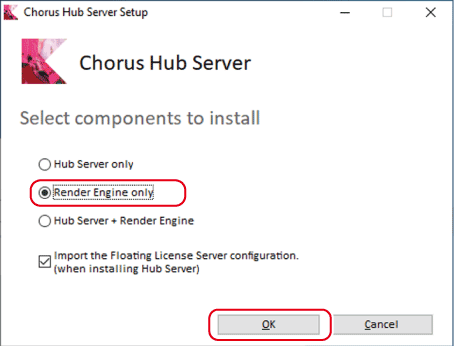
3) Select [Render Engine only], and click [OK].
4) Perform steps 4) to 7) in STEP 1: Installing Server Software .

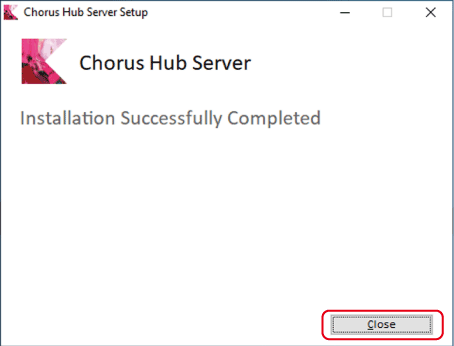
5) Click [Close].
Note

  • If the external render engine is used to render timelines using third-party video plug-ins or VST audio plug-ins, the same plug-ins must also be installed on the external rendering terminal.

  • After installing a third-party video plug-in, restart the OS.

  • After installing a VST audio plug-in, use the following procedure to set the folder in which the VST plug-in component was installed.

    • Display the Windows start menu, and click [Grass Valley] → [Admin Console].

    • Double-click [Plug-in] in the [Admin Console] dialog box, set the folder in [Effects] → [VST Plug-in Bridge], and click [OK].

    • Close the [Admin Console] dialog box and restart the OS.

 To Top