Changing the Server Console Administrator Password
If signing in to the administration console for the first time, the administrator password will need to be changed.
1) Start up GV License Manager (Server Mode) on the server computer.
2) Click [Open license server in browser].

-
The server console is displayed in the web browser.
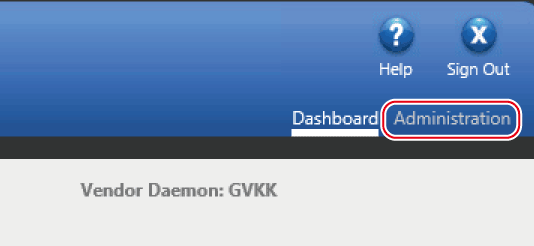
3) Click the [Administration] tab.
-
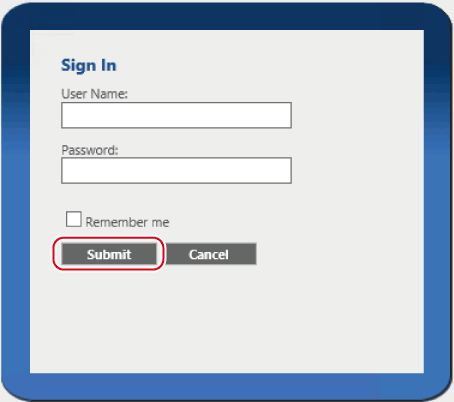
The [Sign In] dialog box appears.
4) Enter the user name and password, and then click [Submit].
-
Enter the following user name and password:
-
User name: admin
-
Password: admin
-
-
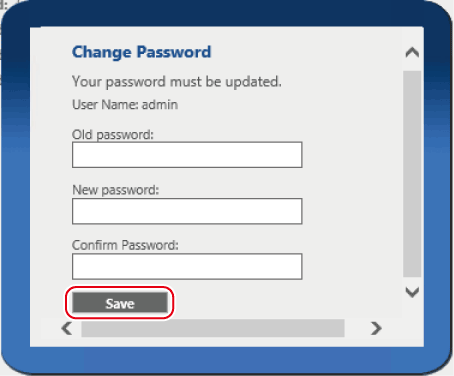
The [Change Password] dialog box appears.
5) Enter the current password and new password, enter the new password again, and then click [Save].
-
The administrator password for the server console has now been changed.
6) Click [OK].
-
The [Change Password] dialog box will be closed.