Grouping Assets (Catalog)
Using the catalog function, you can group registered assets to organize them as desired.
If you use Mync that has come with EDIUS, grouped catalogs can be viewed in the [Mync] window of EDIUS, in the same way as on Mync.
Creating Catalogs
Create a new catalog.
A catalog is created in a layer under the selected item.
This section explains how to create a catalog in a layer under [Library].
1) Click the [Management] tab.
-
The display of the sidebar and thumbnail pane will be switched.
2) Right-click [Library] on the sidebar, and click [+Add].
-
The [New catalog] dialog box appears.
3) Enter a folder name, and click [OK].
-
A new catalog is created in a layer under [Library] on the sidebar.

-
You can also create a new catalog by right-clicking on a created catalog. A new catalog is created in a layer under the original catalog.
-
Catalogs on the sidebar can be resorted or moved between layers of hierarchy.
Drag a catalog you want to move and drop it onto the destination.
-
To delete a catalog, right-click on the catalog to delete, click [×Delete], and then click [OK].
-
To change the catalog name, select a catalog and click on the catalog name again.
Registering Assets to Catalog
You can register assets to a created catalog.
1) Drag an asset in the thumbnail pane and drop it to the catalog.
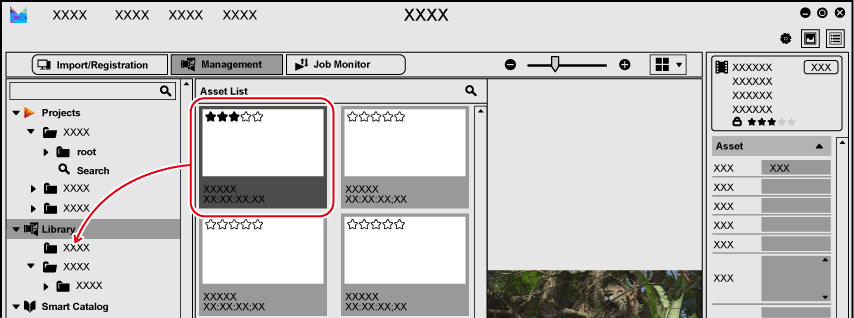
-
The asset is registered to the catalog.
-
You can select multiple assets and drag and drop them, to register multiple assets at one time.