

Way to manage VisTitle license
- License
Way to manage VisTitle license
FAQ ID:000038261 | Date:2026/07/14
Below are procedure to manage VisTitle license:
|
IMPORTANT NOTE: |
Run VisTitle License Manager
To take all steps in this knowledge base, run VisTitle license manager. Follow the steps below to run the license manager:
1) Navigate to C:\VisTitle.
2) Double-click VisLicenseManager.exe.
Confirm whether the license has been activated
1) Confirm whether the license is listed – red surrounded part.
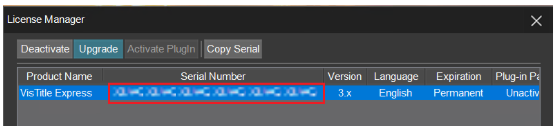
2) If the license is listed, click [X] to close VisTitle license manager.
Backup the serial number
Backing up the license is recommended. Because if you reimage the workstation, you can reactivate VisTitle by using backed up license.
1) Select listed license.
2) Click [Copy Serial].
3) Open Notepad then paste the text. Save the text file for next activation.
Deactivate the license
1) Select listed license.
2) Click [Deactivate].
3) Click [OK].
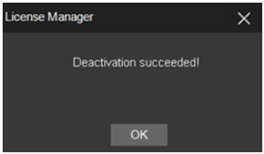
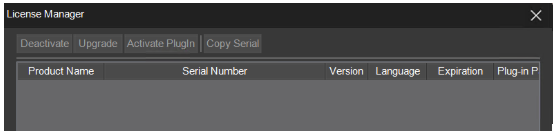
3) Confirm that the license disappeared. Click [X] to close VisTitle license manager.
Reactivate the Vistitle
If you re-image the workstation (VisTitle license is lost), you can activate the license by using license text file. Follow the steps below:
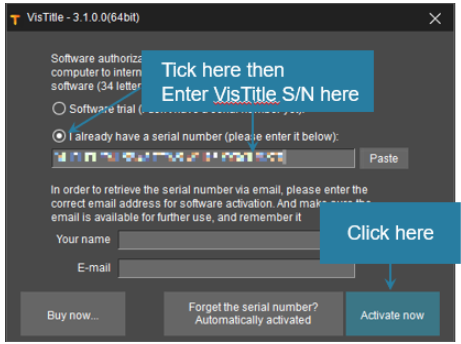
1) Double-click VisTitle shortcut on the desktop.
2) You will be asked license activation. Activate the license by using saved text file.
MENU
- About EDIUS
- License
- Way to retrieve EDIUS serial number
- An error occurs while activating VisTitle license
- Way to gather license information file
- Offline license activation/deactivation stops midway
- EDIUS / Mync: Listed license cannot be removed from GV License Manager (#411C error)
- Things to consider when uninstalling EDIUS 11.50
- Steps to confirm server certificate
- Way to manage VisTitle license
- 0x800CE1A error appears when validating the license
- Replace EDIUS license from Trial to Product license
- Specification
- Different versions of EDIUS on the same PC
- EDIUS 11: Notes on performance improvement of project loading
- GPU hardware acceleration for preview and timeline export
- EDIUS X supported file formats
- Functional differences between EDIUS X Pro and Workgroup
- EDIUS proxy clip compatibility
- Notes on upgrading to EDIUS X
- EDIUS project file compatibility
- Windows 11 compatible information
- EDIUS X system requirements
- Installation
- .NET Framework installation fails
- Steps to upgrade VisTitle Express build
- Resolved - EDIUS installation fails on February 29
- Way to reinstall EDIUS to resolve the issue of not running EH services
- EDIUS / Mync: Way to identify GV License Manager build number
- EDIUS 11 Broadcast: An option to install EDIUS without Mync installation
- Mync is unavailable after upgrading EDIUS 11 Broadcast build
- Silent installation of EDIUS / Mync / Hub / Floating License server
- Things to consider when uninstalling EDIUS 11.50 or later
- Windows Defender SmartScreen prevents running EDIUS installer
- Starting-up
- EDIUS does not start
- EDIUS fails to start with AMD GPU
- EDIUS fails to start by no progress of 'initializing asset repository'
- EDIUS 11: "Synchronizing" dialog appears when opening a project
- EDIUS 11 fails to open some of projects saved with old generations of EDIUS
- Way to start EDIUS without migration of older version's settings
- Error starting EDIUS, Failed to communicate with the service
- Configure EDIUS on first time starting
- Start editing video
- Starting fails / Not found EH service error appears
- View
- Project Settings
- Clip
- Long duration clip placed onto the timeline
- Steps to regenerate proxy clip
- Notes on changing frame rate value in clip properties
- "Codec type not supported" error appears when loading Blackmagic RAW clip
- Cannot load .CR3 clip in EDIUS
- EDIUS / Mync is unable to load HEIC file
- Can I edit a clip shot by 360 degree camera ?
- EDIUS becomes unstable with 11th Gen Intel Processor and NVIDIA GPU
- EDIUS may freeze while decoding H.264 or 265 clip on 12th Gen Intel Core processor
- EDIUS rejects loading a file
- Import / Capture / Data migration
- How to use the Input Preset menu
- Captured clip is split into multiple clips
- Input timecode does not appear while video capture
- Troubleshooting of transferred clip to be offline
- EDL import fails in EDIUS
- Mync 11: Steps to restore offline assets
- EDIUS / Mync is unable to load HEIF file
- EDIUS cannot import a DVD
- Create capture device preset
- Generic troubleshooting for issue of capture via video I/O hardware
- Operation
- Clips are off-line in EDIUS project when loading project on another client
- Import / export does not work from / to P2 card
- About auto recovery of corrupted project Bin
- EDIUS 11: Troubles when importing MP4 or MOV files or Proxy Originated Editing
- Proxy Stuttering/jerking on EDIUS XS
- Asset Store database migration on updating EDIUS X / 11
- EDIUS 11: Not working the Bin with STATUS_STACK_BUFFER_OVERRUN error
- "Synchronization of project and database" appears while loading a project
- EDIUS 11: Audio editing response is very slow while modifying rubber band
- An error occurs when running multicam audio sync
- Effect
- Cannot apply a clip transition
- Cannot use GPUfx transitions
- EDIUS 11: Way to install VisTitle Express
- GPU transition tree doesn't appear in Effect Palette
- EDIUS 11 New Feature: Auto color correction
- EDIUS 11: Compatible third party effect plug-in
- EDIUS 11: VST 3 plug-in support
- EDIUS 11: Steps to activate VST 3 plug-in
- EDIUS X: Compatible third party effect plug-in
- Third party plug-in compatibility by EDIUS versions
- Title
- Quick Titler cannot import a text file
- Title text is fuzzy in Quick Titler
- QuickTitler works slowly when creating a title clip in *.etl2 format
- EDIUS 11: Support speech to text
- Titler Pro clip becomes offline in EDIUS X timeline
- EDIUS QuickTitler window is invisible
- Typed first Chinese character doesn't appear in QuickTitler
- QuickTitler text unexpectedly changes / disapeears when loading a title in another PC
- Switch QuickTitler default format
- Audio
- Audio waveform does not appear in the timeline
- Audio distortion occurs when playing 32bit depth audio clip
- How to reset default destination of voice over audio file?
- Acon Noise reduction at the beginning of a clip is not applied
- Audio normalize does not proceed
- Audio normalize context menu is inactive
- Setup Storm 3G Elite USB audio
- Export
- EDIUS unable to print to tape
- An error appears when printing to H.265 clip on EDIUS 9
- How to export XDCAM MXF single clip in EDIUS?
- Timeline export fails if project has thousands of clips
- 'Add to Bin' does not work when using default exporter
- H.264/H.265 export using "Use Hardware Encoder" option fails
- New encoder selection UI on H.264/AVC and H.265/HEVC exporter
- EDIUS 11: NVIDIA GPU hardware encode support
- EDIUS 11: NVIDIA GPU is not detected for hardware video encoding
- Exporter preset does not preserve the destination path
- Hardware
- GV video hardware cannot be used
- Steps to preview a video on installed video hardware
- AJA Control Panel does not start
- Backup / restore hardware device preset
- Third party video hardware tested with EDIUS X
- Third party video hardware tested with EDIUS 9
- Color belt appears on video monitor connected to AJA hardware
- Color bar appears on connected video monitor after signing onto the Windows
- Use video hardware while inactive of EDIUS
- How to setup third party video hardware?
- Others
- EDIUS 11: Reset Chorus Hub in editing client
- Does EDIUS delete asset store database on upgrade or downgrade?
- Check for updates fails
- Way of resetting Chorus Hub on Chorus Hub ecosystem
- Editing with NVDEC causes inoperable of EDIUS and OS
- Confirm running status of EDIUS HUB services
- Reset EDIUS settings to software default
- EDIUS freezes / crashes
- WER dump is not generated when crashing EDIUS application
- User Settings
- eID (EDIUS ID)
- Way to change eID password
- Way to reset eID password
- How I can discover my eID?
- How to reset my eID password?
- An error occurs when logging into eID (EDIUS ID)
- About eID (EDIUS ID)
- Replace to another eID
- Steps to create eID
- Way to link license to eID on subsequent running of EDIUS
- I cannot create eID (EDIUS ID)
- Environment Settings
- Way to force dispatch Intel integrated graphics to EDIUS application
- GV Render Engine ignores proxy server settings for the LAN
- EDIUS fails to import from / export to ftp servers
- EDIUS supports to preserve preview quality
- TCP ports used by EDIUS Floating License Server
- Configure GV License Manager to find the floating license server manually
- EDIUS 11: Support renaming profile folder
- Configure default project name in EDIUS 11
- I can't monitor audio on PC speaker
- Configure GV License Manager to show license expiration warning
- Editing Configuration
- Disc Burner
- FAQ Archives
- HDV/DV tape I/O does not work
- Preparation for HDV/DV tape I/O
- Unable to import / export still images
- Help cannot be opened
- Help menu does not appear
- Video scope does not work in EDIUS 9
- About After Effects Plug-in Bridge support
- "Not implemented" error appears while exporting to XAVC S
- EDIUS 8 / 7: How to setup 3rd party hardware?
- EDIUS 8 Third party hardware support
- Rendering